

Example
Portrait with a flower crown
Skin, hair and petals keep their detail when the small file gets more pixels. It is still the same woman.
A photo that looks fine on a screen can turn soft or blocky on paper. Check how many pixels your print size needs, then enlarge the photo to 2K, 4K or 8K in one step.
Upload an image
Drop a file here, pick one, or paste from the clipboard. JPEG, PNG, WebP or HEIC up to 15 MB.
Model
Format
Models and file formats unlock with credits.
No account required
Files are deleted automatically: 24 hours without an account, 7 days in your history. We don’t use your photos to train AI.
A portrait and a product shot, each enlarged from a small file. Drag the slider to compare.
Skin, hair and petals keep their detail when the small file gets more pixels. It is still the same woman.
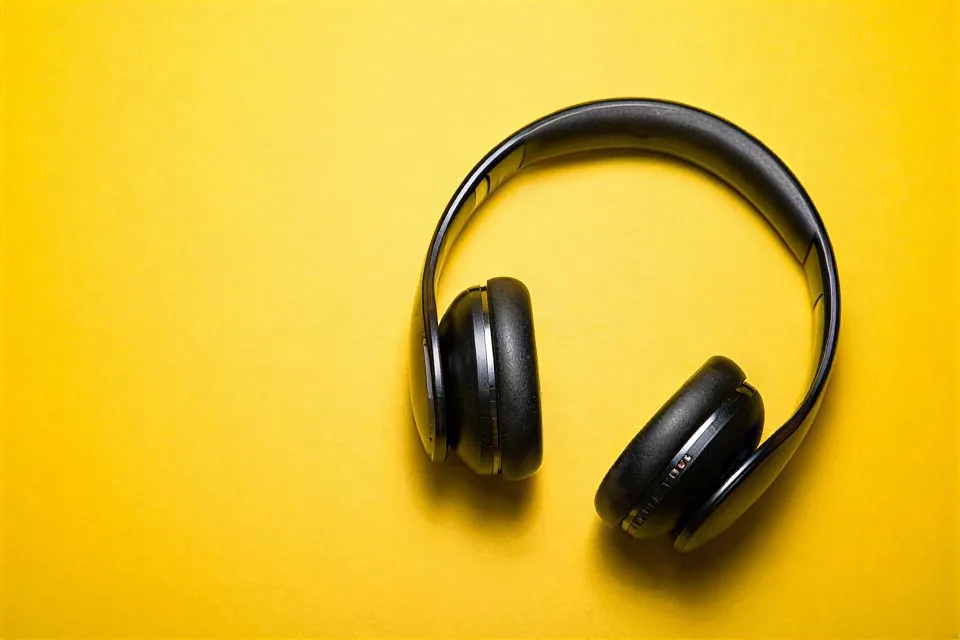

Edges and surfaces of a small product photo come out smooth instead of blocky.
Step 1
Multiply the print size in inches by 300. For an 8×10 in print that is 2400×3000 px. Posters viewed from further away can use 150 dpi.
Step 2
JPEG, PNG, WebP or HEIC up to 15 MB. Pick 2K, 4K or 8K to match the long side you need. The cost is on the button.
Step 3
Slide across faces and edges to check them. Paid runs can be saved as JPG, PNG or WebP at full size, ready to send to a print lab.
A printer needs enough pixels to cover the paper. At 300 dpi, which most photo labs use, one inch takes 300 pixels: a 4×6 in print needs 1200×1800 px, 8×10 in needs 2400×3000 px and 16×20 in needs 4800×6000 px. With fewer pixels than that, the lab stretches the photo and the print looks soft or blocky.
Posters and canvases are looked at from further back, so 150 dpi is usually enough. That halves the numbers: 3600×5400 px covers a 24×36 in poster.
The upscaler adds pixels to reach the size you choose and rebuilds edges and texture as it goes, which looks cleaner than the plain stretch a printer or an editor would do. 2K reaches 2560 px on the long side, 4K reaches 3840 px and 8K reaches 7680 px.
2K: 4×6 to 8×10 in prints and A4 pages. 4K: 11×14 and 12×16 in prints and framed photos. 8K: 16×20 in and larger, canvases and posters.
01
Pick a long side of 2560, 3840 or 7680 px, from a desk print to a wall poster.
02
Hair, fabric and fine lines are rebuilt as the photo grows, instead of the pixels being smeared.
03
2K costs 2 credits, 4K costs 4 and 8K costs 8. Fast 2× is the free option.
A sharp print needs about 300 pixels for every inch. The table shows the pixels each common size needs, and the option that gets a typical 1000–1500 px phone photo or scan there.
| Print size | Pixels at 300 dpi | Pick |
|---|---|---|
| 4 × 6 in | 1800 × 1200 px | Fast 2× (free) |
| 5 × 7 in | 2100 × 1500 px | 2K |
| 8 × 10 in | 3000 × 2400 px | 4K |
| 11 × 14 in | 4200 × 3300 px | 4K (about 270 dpi), or 8K for a full 300 dpi |
| A4 (210 × 297 mm) | 3508 × 2480 px | 4K |
| 16 × 20 in | 6000 × 4800 px | 8K |
| 24 × 36 in poster | 10800 × 7200 px | 8K (about 210 dpi), enough for a poster |
Pixels are long side × short side. Posters are viewed from further away, so 150 dpi is fine: a 24 × 36 in poster then needs only 5400 × 3600 px. The 2K, 4K and 8K options enlarge the long side to about 2560, 3840 and 7680 px.
Download it as it is, or take it further with one of these tools:
Most labs print at 300 dpi, so multiply the print size in inches by 300. A 5×7 in print needs 1500×2100 px, 8×10 in needs 2400×3000 px, 11×14 in needs 3300×4200 px and 16×20 in needs 4800×6000 px. Posters seen from a few steps away look fine at 150 dpi, which halves those numbers.
Match the long side to your print. 2K (2560 px) covers about 8 inches at 300 dpi, or a 17-inch poster at 150 dpi. 4K (3840 px) covers about 13 inches at 300 dpi and suits 11×14 and 12×16 in prints. 8K (7680 px) is for 16×20 in and larger, and reaches about 50 inches at 150 dpi. If your photo already has enough pixels, you do not need to enlarge it.
On Windows, right-click the file, open Properties and then Details. On a Mac, open it in Preview and choose Tools, then Show Inspector. Phones show it in the photo’s info panel. Look for width × height in pixels.
Upscaling gives a photo more pixels and cleaner edges, so it prints much better than a stretched copy. It cannot add detail the camera never captured: a blurry face stays soft and a thumbnail is still a thumbnail.
Fast 2× is free, but free results are limited to 2048 px with a small watermark, which suits a size check or a print up to about 7 inches. For clean print files, use 2K, 4K or 8K.
You can try one photo a day without an account. Signed in with Google, you get 10 free credits every day for Standard runs, up to 2 photos. Free results are JPGs up to 2048 px with a small watermark; credit packs and Pro give full-size results without a watermark and unlock every model.
They are used only to run your edit. Files without an account are deleted after 24 hours; signed-in history keeps them for 7 days, then they are deleted.
Explore our full suite of AI enhancement, restyling, and free conversion tools.
Sharpen and clean up any photo.
Try it

Fix motion blur and soft focus.
Try it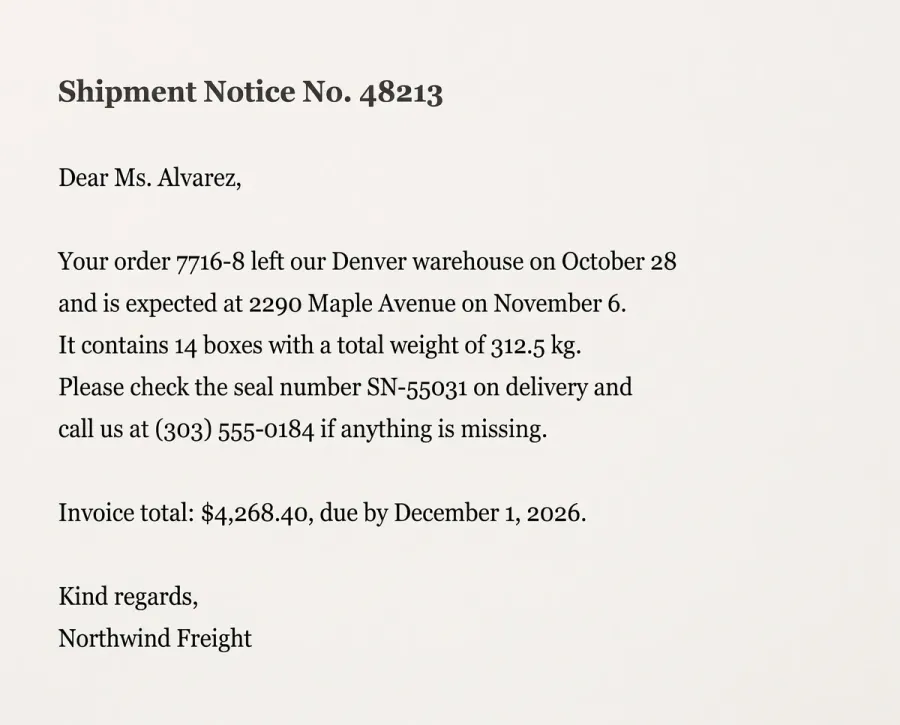

Sharp letters in documents, receipts and screenshots.
Try it

Clear bright spots from flash, lamps and sun.
Try it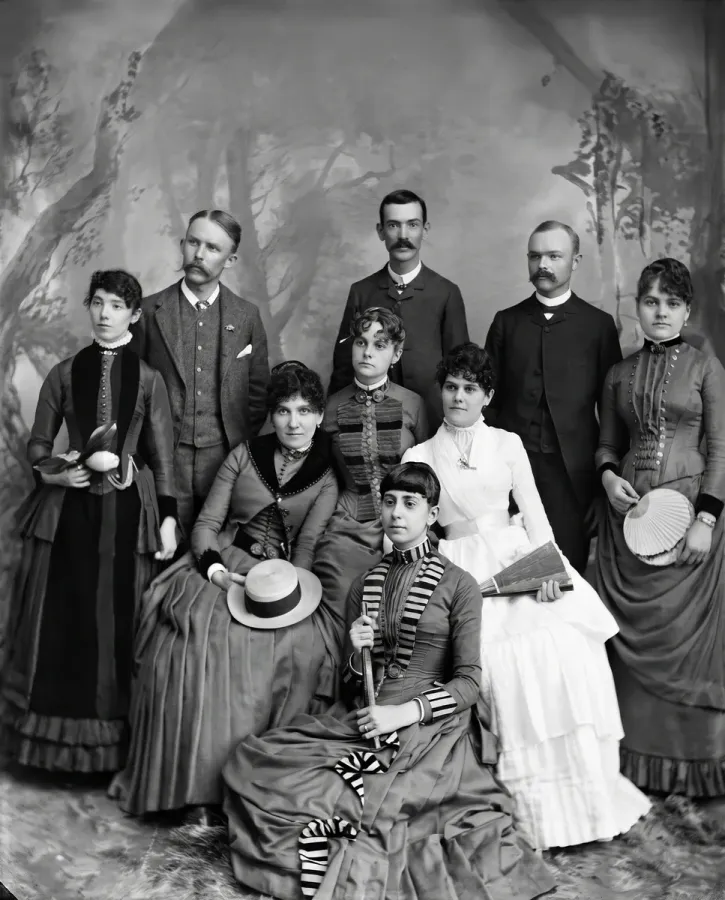
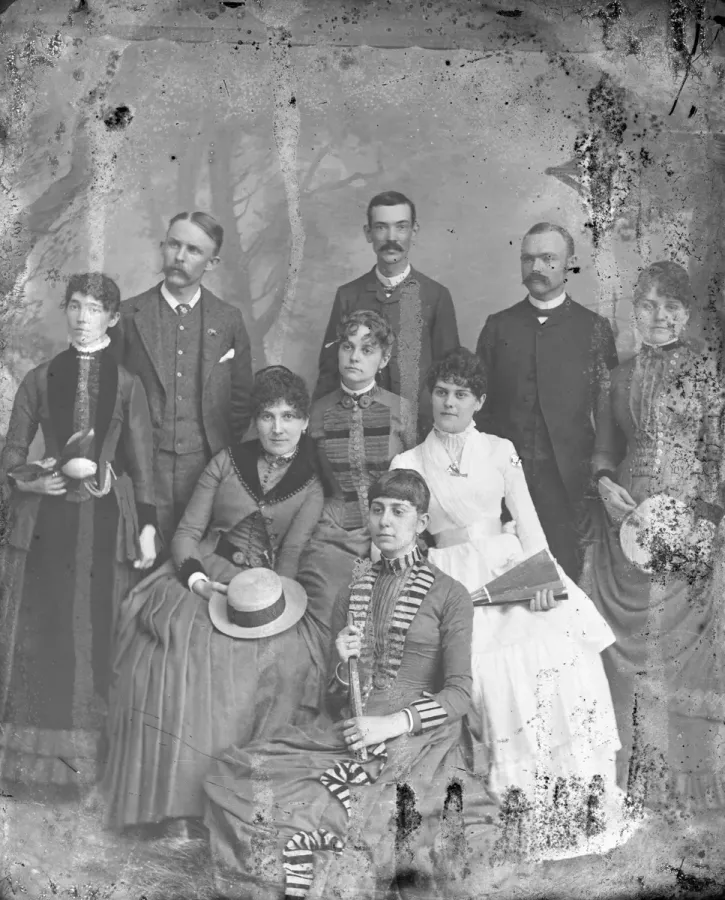
Fix damaged prints: stains, scratches, folds.
Try it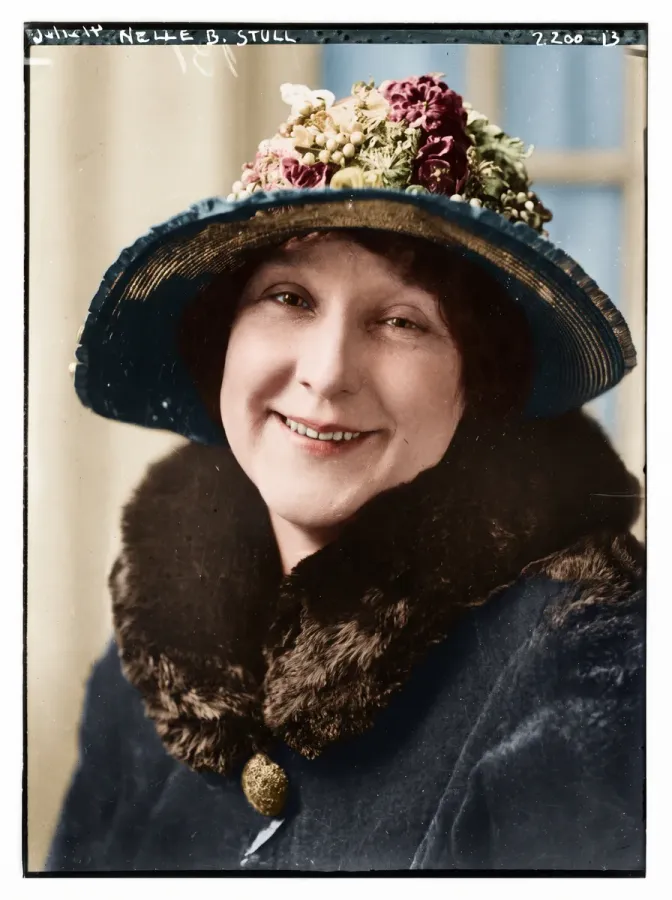
Black-and-white and sepia photos, in color.
Try it

Your people, a tree, snow, a card or Santa.
Try it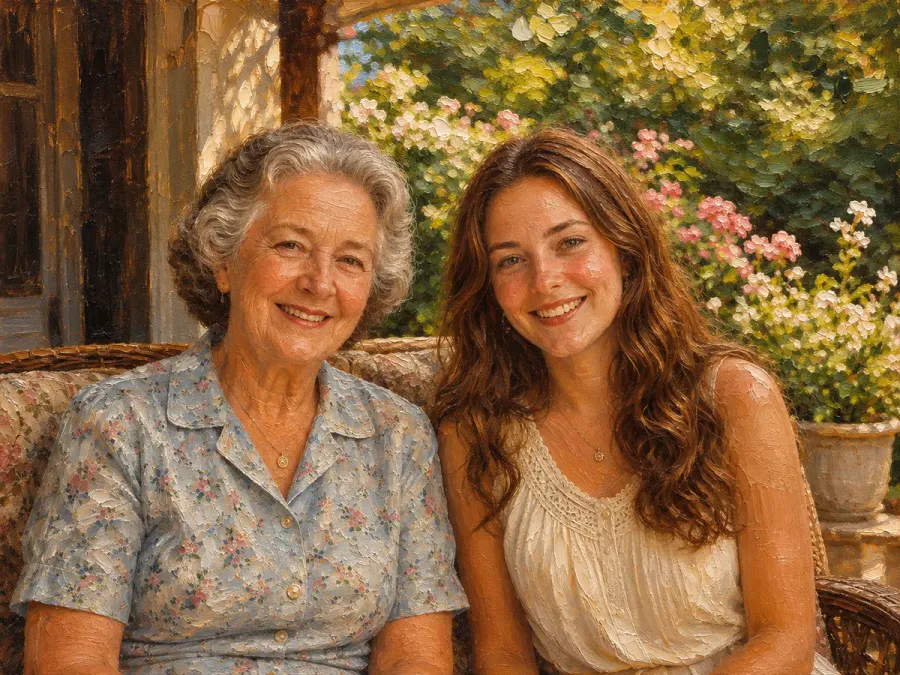
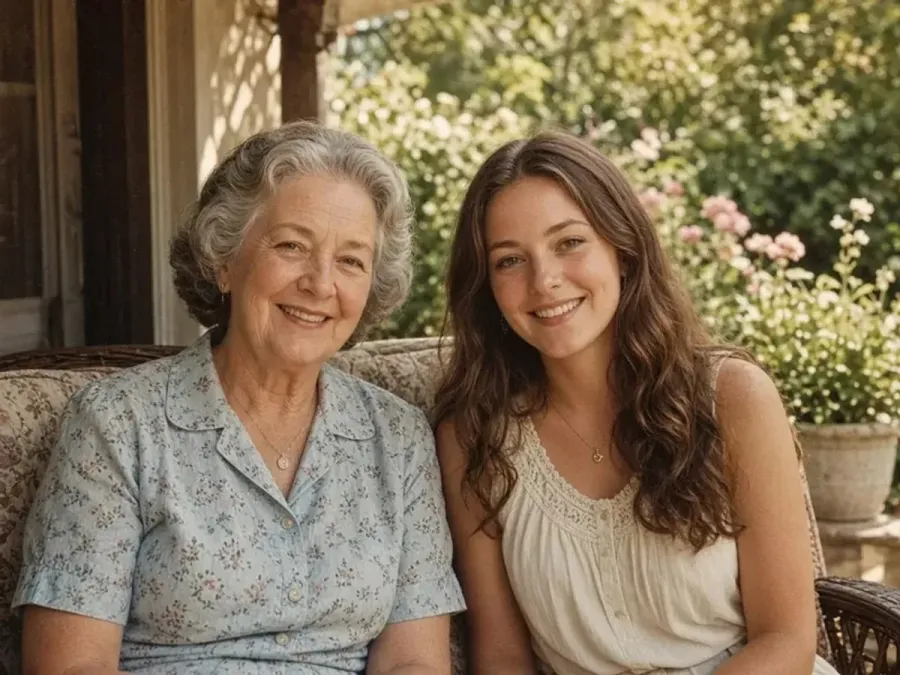
Brush strokes or soft washes from any photo.
Try it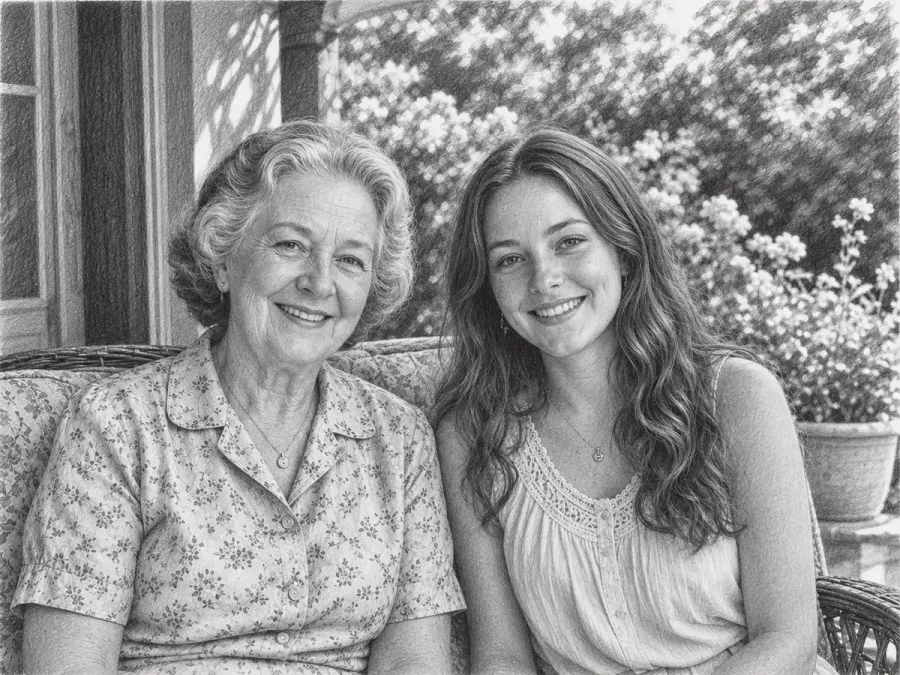
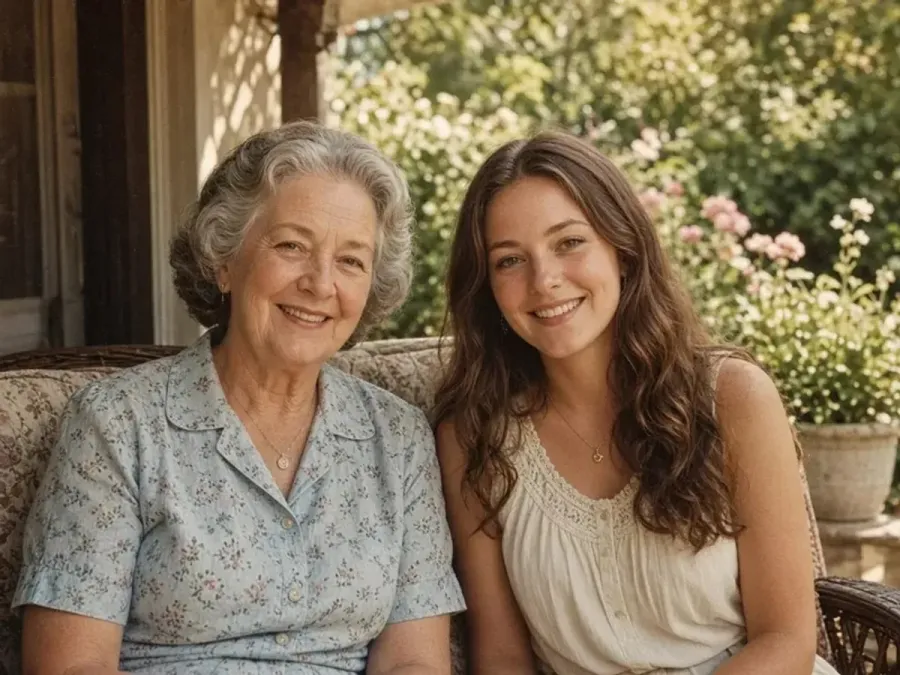
Graphite shading and hatching on white paper.
Try it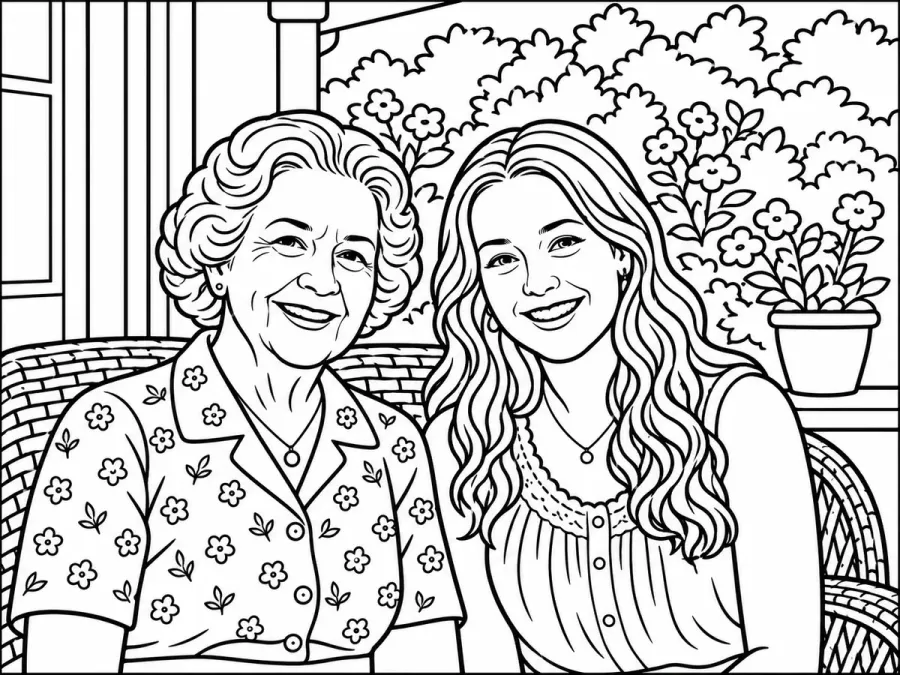
Line art from your photo, ready for crayons.
Try it
Bold outlines and flat color, still you.
Try it

Free grayscale copies, made on your device.
Try it

Enlarge images 2× or 4×, up to 8K.
Try it
Widen a photo to 1:1, 4:5 or 16:9.
Try it
Erase captions, dates and objects.
Try it

Same portrait, no frames or lenses.
Try it
Detect if photos are AI-generated in your browser with zero uploads
Try it